New My Threads docker
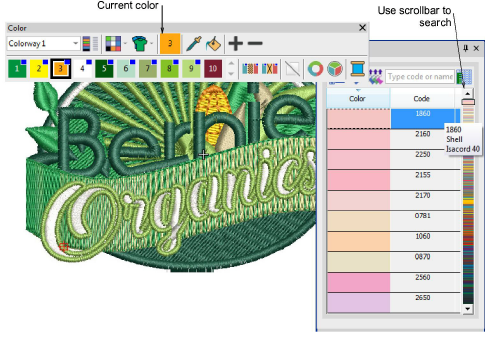
A new ‘My Threads’ docker makes it easy to select and assign thread colors. See also Assign thread colors.
Key features:
- Easily choose which thread charts to display.
- Dynamically sort thread colors in docker by numerical code or color shade.
- Locate desired colors using a color scroll.
- Enter color code to locate a specific color.
- Double-click to assign thread color to current palette slot.
Configurable toolbar display
 | Use Standard > Options to access application options for design view, grid & guides, and other settings. |
|---|
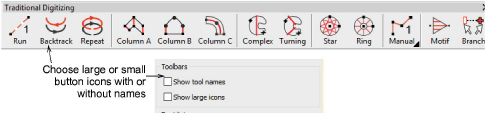
EmbroideryStudio allows you the choice of large or small button icons with or without short names. See Toolbar display options for details.
Object selection
 | Use Toolbox > Select Tools > Select Object to select individual objects as well as groups or ranges of objects. |
|---|---|
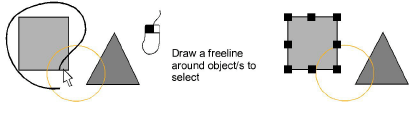
 | Use Toolbox > Select Tools > Freehand Select to select object at current by drawing a freehand line. |
In addition to existing Select tools, the new Freehand Select tool allows you to draw a freeline around the object/s you want to select.
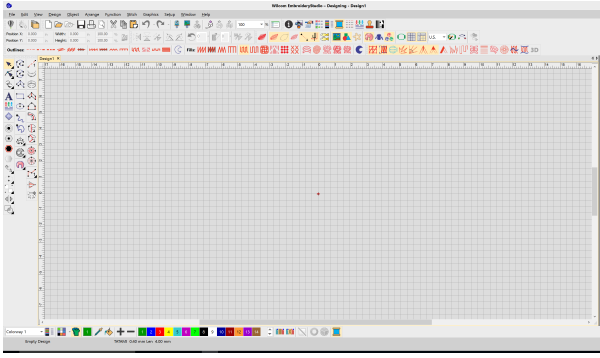
Support for 4K high-res monitors
EmbroideryStudio e4 now provides support for 4K high resolution monitors. Buttons are large enough to be seen effectively providing effective use of the large graphic area.
Quick recoloring
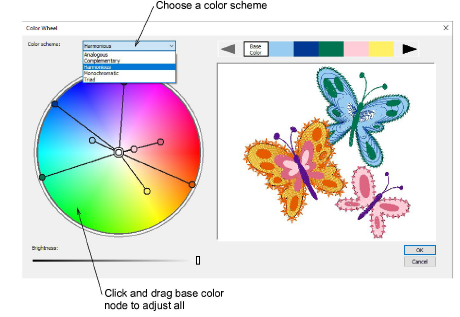
New tools allow you to quickly re-color entire designs. See also Add colorways.
- The Cycle Colors tool lets you automatically re-color objects by swapping colors used in the design.
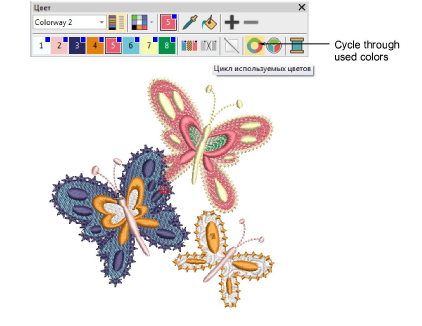
- Use the Color Wheel to cycle through different color combinations using preset color schemes – Analogous, Complementary, Harmonious, etc.