Applying envelopes
 | Apply Envelope > Bridge Envelope to make objects bulge or arch. |
|---|---|
 | Apply Envelope > Pennant Envelope to make objects compress. |
 | Apply Envelope > Perspective Envelope to make objects stretch. |
 | Apply Envelope > Diamond Envelope to make objects bulge or compress. |
Four types of Envelope effect are available – Bridge, Pennant, Perspective and Diamond. Envelopes are typically applied to lettering objects, but they can also be applied to other types of embroidery object.
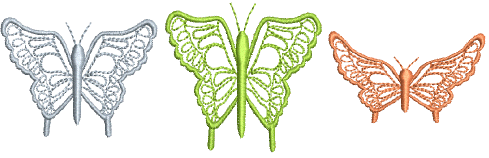
To apply an envelope...
Select the lettering object you want to distort. To apply an envelope to several objects, group them first, then apply the envelope.
Select Edit > Envelope.

- Select an envelope type from among the following alternatives:

Shaping handles display around the envelope outline.
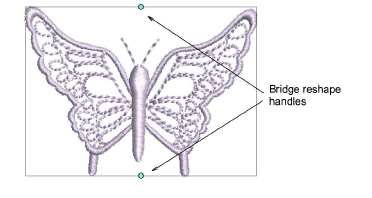
- Drag handles up or down to shape the object.
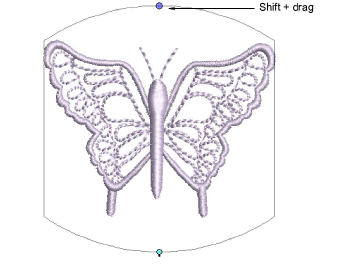
- To move two handles in opposite directions, hold the Shift key down while dragging.
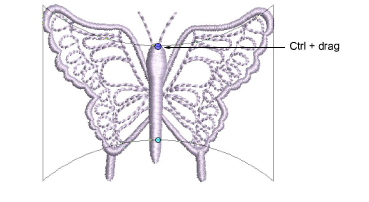
- To move handles in the same direction, hold down the Ctrl key while dragging.
- Press Esc to finish.